
Now that I have a GPU, it’s time for experiments. The obvious first thing is to run a local LLM.
What’s possible on my hardware
The impressive models powering ChatGPT or Claude require several hundred GB of VRAM. My GPU has 6GB. There are some ways to reduce hardware requirements, but even with them I won’t be able to host anything practical (for a chatbot or agent, that is - there are other uses). High-end consumer GPUs can run a limited model that serves a real purpose, but my card is far from high-end. I expect my chat to be slow - few tokens per second - and prone to hallucinations. In a few moments, I’ll see if I’m right.
On the other hand, making the model work acceptably on a limited hardware is actually a useful skill.
Where to get models
The best current models are tightly kept secrets, but companies decide to publish some of their work as open weight. That is the equivalent of Open Source in the ML world (though the analogy isn’t perfect: the training data and code usually aren’t published, only the result).
Hugging Face is a hosting platform for machine learning models and datasets. Like GitHub, but for ML. You can browse the models from the web interface and download them directly.
Ollama library is where Ollama - the tool described below - downloads from.
There are several file formats for publishing models, the most popular is GGUF. It’s a convenient package: one file per quantised model, storing the weights together with the tokeniser, neural network structure and metadata. The full layout is documented in the GGUF spec.
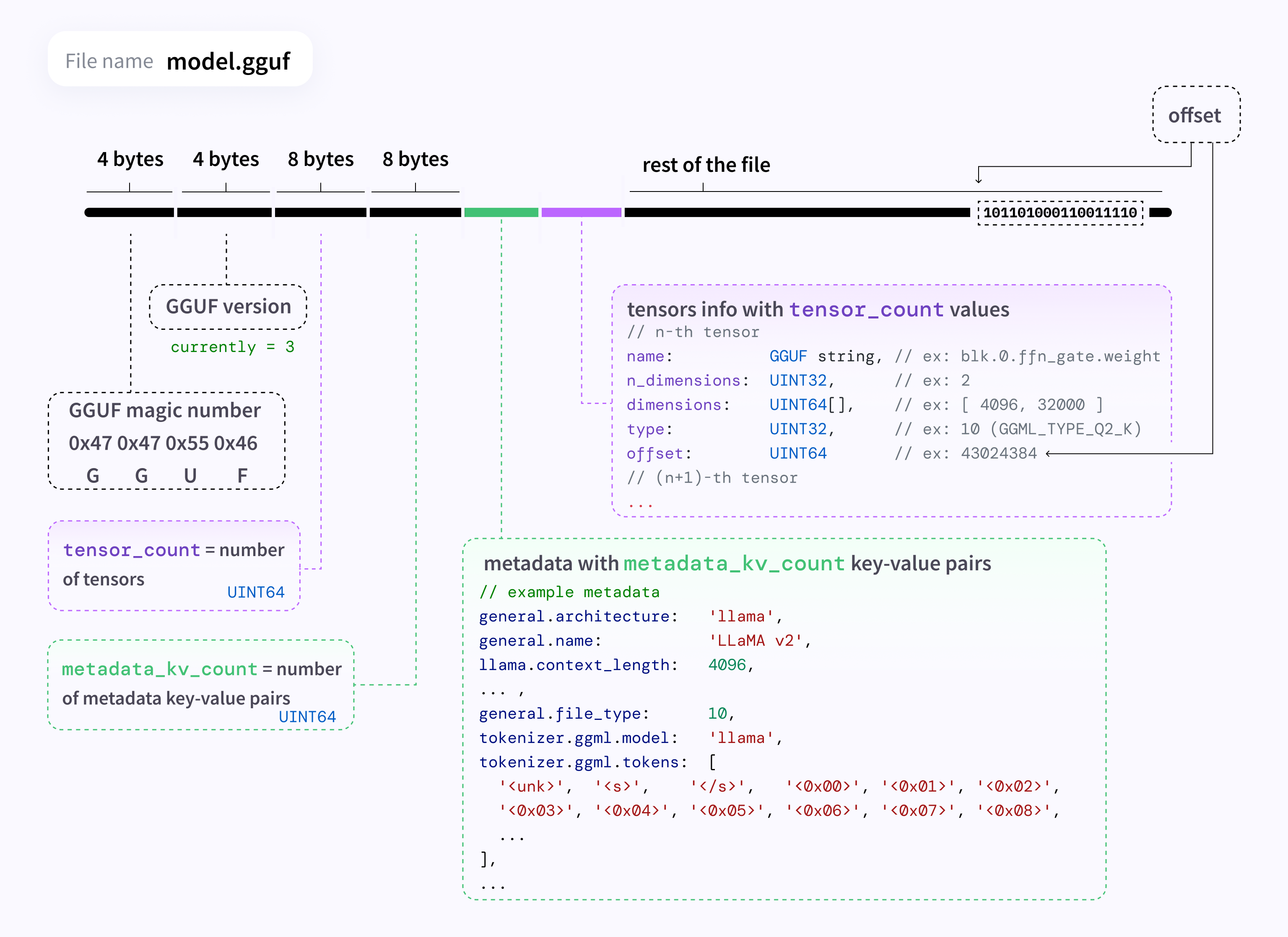
Diagram by @mishig25, from the GGUF spec (MIT-licensed).
Reducing hardware requirements
Quantisation
Models are trained and originally published at FP16 or BF16 - the formats from GPU part 1’s floating point table - because it’s optimal for training stability. That means 16 bits, or 2 bytes, per parameter. Inference - using the model - can work with lower precision numbers.
Quantisation is reducing that precision after training, storing each weight in fewer bits. Common levels are Q8, Q6, Q5, Q4 and Q2 - that many bits per weight. Though the “K-quants” most people use (Q4_K_M, Q5_K_S, etc.) mix bit-depths - e.g. Q4_K_M might use Q6 for the most important parts of attention and feed-forward tensors, Q4 for everything else, making it slightly larger than 100% Q4 but more stable. And the S/M/L suffix is a size/quality tradeoff within that same nominal bit count. Confused? Don’t worry about that, just experiment.
As a rough rule of thumb, size in GB is parameters (billions) × bits ÷ 8. A 7B model at BF16 needs 14GB just for the weights, reduced to Q4 is about 3.5GB - more, since some weights likely use a larger format. Right size for my 6GB card - I need to leave some space for context and other purposes.
Distillation
The largest Open Weight models - e.g. DeepSeek-V4 - are well over 1T parameters. The same creators publish much smaller models. Distillation means a “student” model is trained to mimic a larger “teacher” model’s outputs, rather than being trained from scratch on raw data alone. The idea being that the teacher’s outputs already encode a lot of what’s worth learning, so the student converges on more capability per parameter than an equivalently-sized model trained the usual way.
Tradeoffs
The two techniques work together: distillation shrinks the parameter count, quantisation shrinks the bits used to store each parameter. But there’s a cost.
Smaller and less stable models are more prone to hallucinations than LLMs you know from publicly available chats. Not only do they fabricate facts, they often include words from other languages in their output or drift completely off topic.
Some models are trained for a specific task, rather than being universal. For example, Polish model Bielik is mostly trained on Polish sources and despite small size (11B full model, I tested 7B/Q4) can answer Poland-related questions correctly, but struggles on everything else.
Using VRAM and system RAM together
An LLM is made of identical transformer layers, and there’s nothing stopping different layers living in different places - llama.cpp (and Ollama on top of it) loads as many as will fit into VRAM, and puts the remainder in ordinary system RAM. But that means the parts that sit in RAM are computed on CPU, which obviously can’t do massively parallel processing. Offloading even a small part of the model to RAM has a huge impact on how many tokens per second it can process. But it’s the only way to load a model larger than VRAM. In theory, I could even load a full-blown LLM into swap space, but I wouldn’t like the inference speed.
Software stack that I tested
The most popular engine for small platforms is llama.cpp. It runs GGUF models directly. It gives the most control, but requires a lot of manual work.
Ollama is a wrapper around llama.cpp that turns it into something with a package manager: ollama pull <model>, ollama run <model>. Most of llama.cpp’s capability, much less of the manual setup. Ollama also runs on Windows and MacOS and can use cloud models in addition to local ones, but I haven’t used that.
Open WebUI is a chat frontend, that gives a nice web GUI and talks to Ollama’s REST API.
Ollama
Installing Ollama
Ollama ships an official Docker image. First run downloads a few GB, so be patient:
docker run -d --restart unless-stopped \
  --gpus=all \
  -v ollama:/root/.ollama \
  -p 11434:11434 \
  --name ollama \
  ollama/ollama
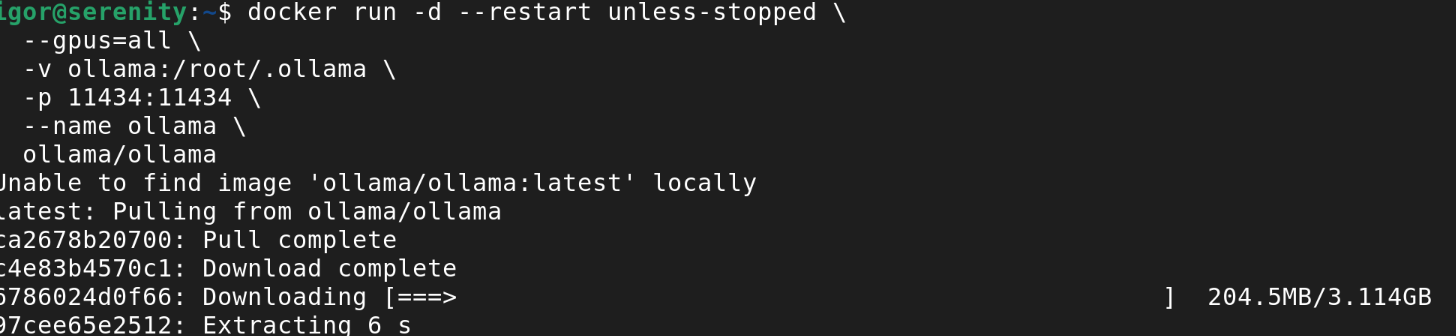
-v ollama:/root/.ollama keeps downloaded models in a named volume rather than inside the container, so they survive an image update. A quick check that it’s alive:
curl localhost:11434
which should just reply Ollama is running.
No GPU?
You can still run Ollama without a graphics card. It falls back to running entirely on CPU, the commands and API don’t change (you only need to remove --gpus=all from docker run).
Performance does. It’s easily an order of magnitude slower. Without a GPU there’s no massively parallel matrix multiplication, so it’s the CPU doing the work and ordinary system RAM bandwidth (much lower than VRAM’s). If you run a 7B model, you can type your question and go for a coffee, it will reply in a few minutes.
Worth picking a small model to compensate - llama3.2:1b runs reasonably fast. Although don’t expect the same quality of answers.
docker exec -it ollama ollama pull llama3.2:1b
docker exec -it ollama ollama run llama3.2:1b
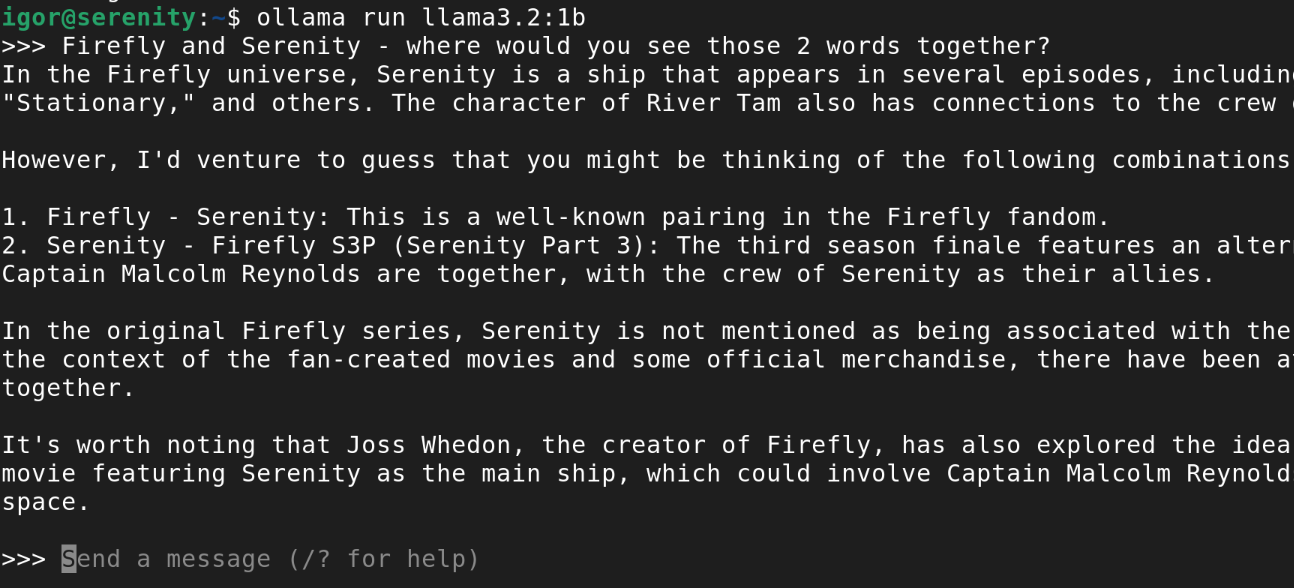
Configuring Ollama
Most of the useful configuration is environment variables, set with -e on the docker run above (or in a compose file):
OLLAMA_MODELS- where models are stored, if the default volume location isn’t where I want it.OLLAMA_KEEP_ALIVE- how long a model stays loaded in VRAM after the last request before it’s unloaded. Default is 5 minutes.OLLAMA_MAX_LOADED_MODELS- how many models can be resident at once. On this card, that’s staying at 1 - there isn’t room for a second.OLLAMA_NUM_PARALLEL- concurrent requests handled per model. Left at the default; concurrency isn’t the constraint here, VRAM is.
Customising models
If you’re familiar with building Docker images, the concepts will look familiar. Write a Modelfile image with a syntax you’ll immediately recognise, set parameters and system prompt, then build your own model.
FROM llama3.2
PARAMETER temperature 0.7
PARAMETER num_ctx 4096
SYSTEM You are a concise assistant. Prefer short answers.
ollama create my-llama -f Modelfile
Context length (PARAMETER num_ctx) is worth setting on a small card: it’s not free, it takes VRAM away from the model weights themselves. A large num_ctx is one of the easier ways to push parts of the model from VRAM into RAM.
Using Ollama
The ollama binary lives inside the container, not on the host, so every command runs through docker exec:
docker exec -it ollama ollama run llama3.2
That is inconvenient, way too many llamas. I added one line to my .bashrc to change it to a simple ollama command:
alias ollama="docker exec -it ollama ollama"
Model choice is where the 6GB limit matters. 7-8B models at Q4 are the limit of what can fully fit in VRAM. They take 3.5-4GB for the weights, leaving a little for context and the rest of the system. Smaller ones fit far more comfortably:
ollama pull llama3.2       # 3B, fits easily
ollama pull qwen2.5:7b     # 7B/Q4, barely fits
ollama pull SpeakLeash/bielik-minitron-7B-v3.0-instruct:Q4_K_M # also 7B/Q4
ollama run drops into an interactive prompt, you can type your questions directly from the terminal. The more useful interface, for anything scripted, is the REST API on port 11434:
curl localhost:11434/api/generate -d '{
  "model": "llama3.2:1b",
  "prompt": "Explain what CUDA is in one sentence.",
  "stream": false
}'
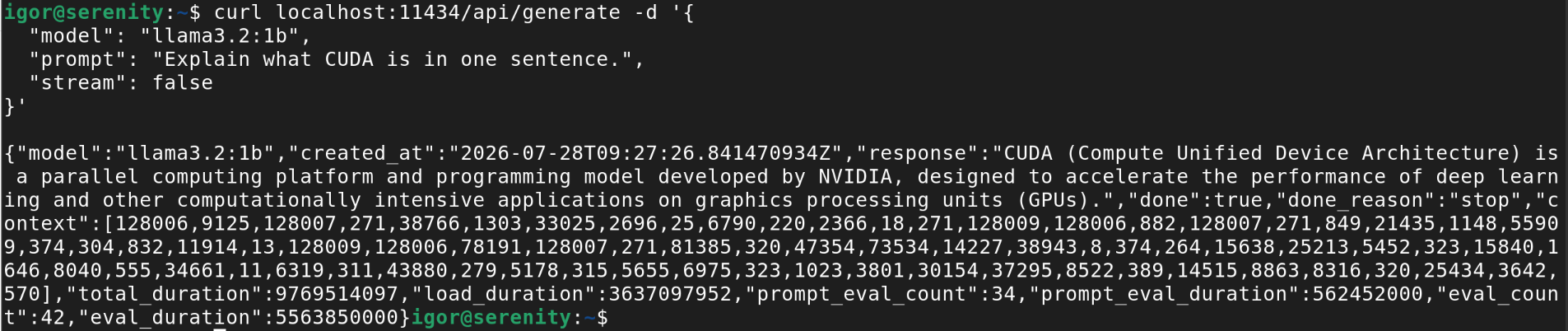
Finally, ollama ps lists currently running models and the CPU/GPU split.
Open WebUI
Installing Open WebUI
Open WebUI ships its own Docker image, and expects to reach Ollama over the network. The UI container doesn’t need the GPU. Putting both containers on the same user-defined network lets them address each other by container name instead of hardcoding an IP:
docker network create ollama-net

docker network connect ollama-net ollama

docker run -d --restart unless-stopped \
  --network ollama-net \
  -e OLLAMA_BASE_URL=http://ollama:11434 \
  -v open-webui:/app/backend/data \
  -p 3000:8080 \
  --name open-webui \
  ghcr.io/open-webui/open-webui:main
-v open-webui:/app/backend/data is where chat history, accounts and settings are stored. Remember to use the volume so you don’t lose them on container restart.
Running with Docker Compose
If that’s too much typing (or copy-pasting), I prepared a Docker Compose file to run Ollama, Open WebUI and the network with one command:
docker compose up -d
It takes a few minutes before the GUI is ready (at least on my hardware).
Configuring Open WebUI
By default, Open WebUI shows a setup screen asking to create an account with admin rights. You can also set WEBUI_AUTH=false to skip login entirely. Fine for a temporary experiment on a home network. That’s what I did in my Docker Compose file. Important: you need to decide on one or the other, if you create an account, you won’t be able to disable authentication.
A few other settings in the admin panel:
- Which models are visible - anything already pulled with
ollama pullshows up by default, you can hide some models. - Default model and system prompt - set once instead of typing the same instruction into every new chat.
- Per-model parameters - context length, temperature and similar, the same things a Modelfile sets, but adjustable per-conversation from the UI instead of baked into a build.
Using Open WebUI
Point your browser to http://<your hostname or IP>:3000/. What you’ll see is just an AI chat like any other - only slower and dumber. You can pick a model from the dropdown (if nothing shows up, do ollama pull first), type, and get an answer.
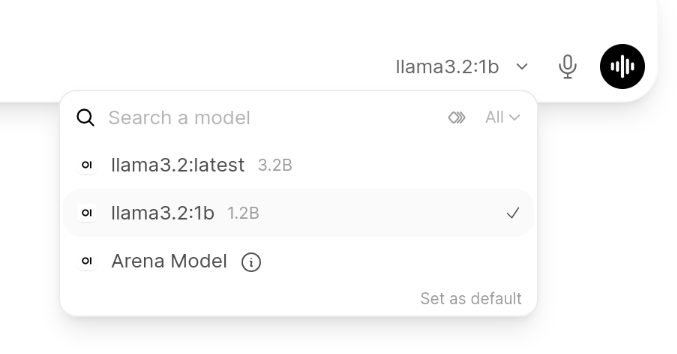
A few things seemed different compared to commercial products:
- Model switching in the middle of the conversation. It works, but on a 6GB card it means a long pause: Ollama will unload the first model and load the second one.
- Document upload / RAG - Open WebUI can embed a document, then pull relevant knowledge into the chat. It works, sort of, it would give excellent privacy. But it needs an embedding model in addition to the chat model. On a 6GB card, there’s no room for both.
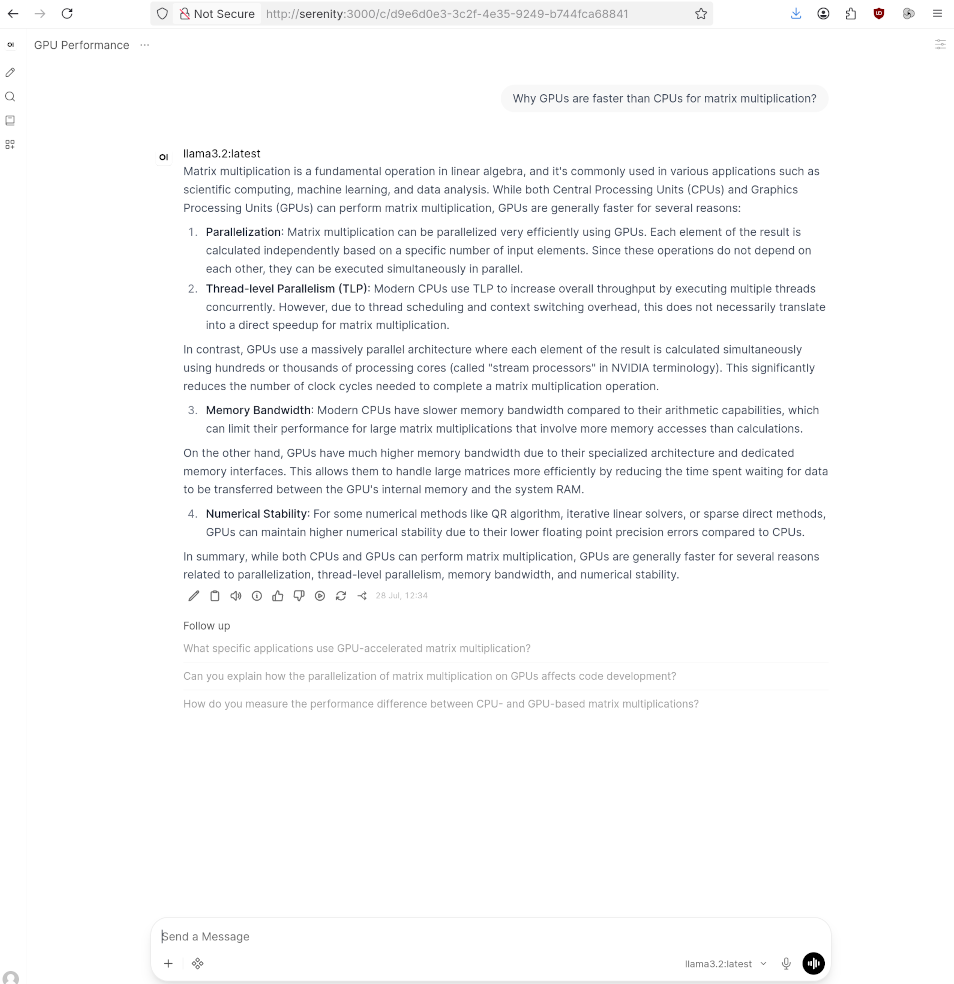
What have I learned
- How the floating point format affects stability.
- How model size affects quality of the answers.
- How specialised models, like Bielik, can give good answers despite small size.
- How much GPU is faster than CPU.
- How the software stack is built.
Technically, I knew all of these. But reading and seeing with your own eyes are two different things.