Sharing files between your devices using a cloud service such as Google Drive or Dropbox is incredibly convenient. Wouldn’t it be nice to do the same locally, with complete privacy and without using your internet connection? Sure it would.
Syncthing works on Linux, Windows, macOS, FreeBSD and Android. There are also packages for commercial NASes from Synology, QNAP, WD and others. It doesn’t require a server - you can directly sync two computers, or a computer with a phone, or 3 devices can all sync with each other. That’s what I did before I got the NAS. But if you have a home server which is always on, it makes sense to treat it as a central point and have all other devices synchronise with it.
Installation
On my Linux laptops and desktop, I just installed the package and set syncthing to autostart using my user account (no need to run it as root and a dedicated account wouldn’t have access to my files):
apt install syncthing
systemctl enable syncthing@igor
systemctl start syncthing@igor
On the NAS, it was similar, but I used Ansible. This is the task file I added to the firefly role:
---
- name: Install syncthing
  apt:
    name: ['syncthing']
    state: present

- name: Create directory for syncthing
  ansible.builtin.file:
    path: /data/noshare/syncthing
    state: directory
    owner: igor

- name: Restart syncthing
  service:
    name: syncthing@igor
    state: restarted
    enabled: true
I could run syncthing in a Docker container, but I don’t see much value in it. It’s just one package, data is all contained in one place and a reasonably up-to-date package is widely available for Linux distros (Syncting also runs its apt repo if you want a newer version).
On Windows I installed the SyncTrayzor v2 package, which includes Syncthing and a system tray widget. Finally, on Android it’s just installing the package from either Play Store or F-Droid (update: the original package was discontinued, use Syncthing-Fork now).
Configuration
Syncthing isn’t really well suited for automated configuration. It stores its settings in ~/.config/syncthing/config.xml. (update: it’s now ~/.local/state/syncthing or $XDG_STATE_HOME/syncthing)
You could generate this file if you really wanted to, but a more sane option is to configure using the web GUI and then back up this file so you can recreate the setup if needed. For configuring your computer, just point your browser to http://localhost:8384.
It’s a bit more tricky with the NAS. By default, syncthing only listens on the local interface. You can change this
option in your config file or, since it’s only needed for a moment and the default is better for security, you can
set up an SSH tunnel. On my laptop, I typed ssh -L 8385:localhost:8384 firefly and pointed the browser to http://localhost:8385.
How does the tunnel work? It means that ssh will forward local port 8385 through firefly to localhost:8384 - but that’s localhost
from the firefly’s point of view. Note that I can open the tunnel through firefly to another server, sysadmins often use this
technique to connect to servers using IPs through one jumphost available on the internet.
Back to the point. In one of your browser tabs, click “Add Folder” and choose what you want to share. In my case, I’m sharing ~/CloudStation between all my computers. The folder name is due to historical reasons, a few years ago I used Synology CloudStation for the same purpose. Don’t share your whole home directory as some config files are system-specific.
Next, click “Add Remote Device”. You can then paste the ID of another device (or scan the QR code) or very likely, you’ll see a list of other devices on the network. Remember to type a name that will be displayed in the GUI instead of the ID. Then, on your other machines, confirm you want to pair with this device. A moment later you’ll see a message: this device wants to share a folder. Click to confirm. Note that the path of the shared folder doesn’t need to be the same, on my computers I use ~/CloudStation, but on the NAS I chose /data/noshare/syncthing/CloudStation.
Syncing the phone
There are some things I like to sync between my computers - code snippets, financial stuff, home related documents - that I would never access on the phone. I decided to share only a subset of files, inside my ~/CloudStation folder, I have ~/CloudStation/na-telefon (which translates as “to the phone”). Syncthing warns that one shared folder is contained within the other, but allows such setup.
One other use for syncthing is to auto upload my photos from my phone to Elsa, my graphics workstation. On the phone, I chose to sync the camera folder with Elsa, but there’s one twist: the synchronisation is only in one direction. The phone will send files, I can view them on the computer and delete those I don’t need, the changes won’t be synced back.
Dealing with conflicts
Most of the time, nothing will stop you from modifying the same file on multiple devices at once. Some applications create lock files, those warn about opening the same file more than once and often suggest opening it read-only. Depending on your workflow, this might be a huge problem (“I’m getting conflicts all the time”), none at all (“I’m always editing this file on this computer anyway, others only read it”) or something in between.
When you do get a conflict, syncthing will keep both versions of the file, adding “sync-conflict” plus timestamp and device ID. It is then up to you - and your applications - to resolve it. For example, KeePassXC will merge two DBs without any issues (but only when you point it at the other file), text files (source code etc.) can be compared with diff, vimdiff or similar tools.
Security and privacy (October 2026 update)
Problem found
I thought that my Syncthing setup is LAN-only. I recently did a port scan on my home’s external IP (it’s dynamic, but public, no CGNAT). To my surprise, I discovered 2 open ports - Syncthing opened them with UPnP IGD and NAT-PMP (yes, 2 ports that do the same, one for each mechanism that does the same). In my defence: I had NAT traversal disabled on the router, but it was enabled after a firmware update (I wonder what other settings changed).
The actual risk was lower than it seemed. Syncthing uses mutual TLS keyed to device IDs, so a stranger would fail the TLS handshake. But anyone who connects gets my device certificate, and search engines like Shodan index these. More importantly, it showed me that any process on any LAN device can open inbound ports on my router. Malware can too.
Syncthing settings
The first obvious thing was to disable UPnP IGD and NAT-PMP on my router. There’s a reason why I had them disabled in the first place.
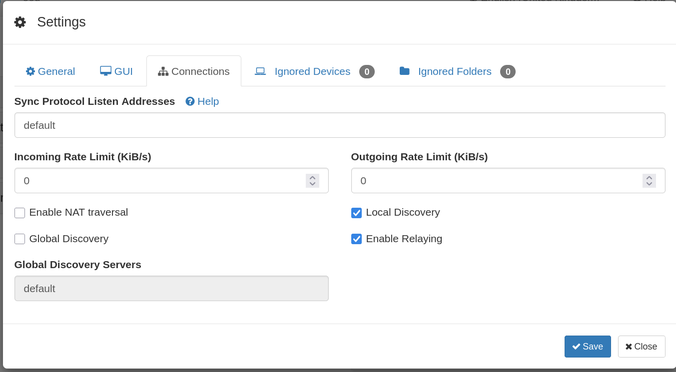
But I decided to also disable NAT traversal in Syncthing settings - to have another layer of defence on my home network, and a single one if I connect to a network I don’t control. The option is called quite intuitively “Enable NAT Traversal” in the Syncthing web GUI and it’s on by default.
I also disabled another option: “Global Discovery”. I didn’t know that Syncthing has a public directory, useful if you want to sync your devices over the internet, but something I specifically wanted to avoid. At least I learned something today and closed the loophole.
Problems still left
Since my devices often travel with me, they connect to other networks. I have local discovery on. Which means my laptop and phone can sync on the hotel Wi-Fi (unless it has client isolation on, which hotel networks should but often don’t), but it also means my devices broadcast their ID on every network. That makes it possible to fingerprint my devices between the networks, even if I use randomised MAC addresses.
They also have the Syncthing port open - again, no connection possible (unless a vulnerability in Syncthing is found), but it makes my laptop stand out from the crowd. Well, in many environments it already stands out, being the only Linux laptop.
I decided that the problems are small, there’s no easy solution, and a hard one is not worth the hassle. What are the possibilities?
- Use firewall rules to only enable connection to Syncthing port from specific IPs (problems: no sync on a hotel Wi-Fi; need to keep my IPs stable on the home network).
- Run a script that detects whether I’m on the home network, depending on the condition: starts/stops Syncthing daemon and opens/closes ports on firewall.
- Use a VPN (e.g. WireGuard) to connect my devices, even if they’re on the same LAN, only run Syncthing on the VPN’s IP.
All of that is a minor inconvenience on my Linux laptop, a major one on my Windows laptop (I’m more skilled with Bash than with PowerShell) and next to impossible on my phone.